
Delivery App Food Photos: How to Shoot for DoorDash, Uber Eats and Grubhub (With Exact Sizes)
RestoPhoto Team · October 5, 2026 · 6 min read
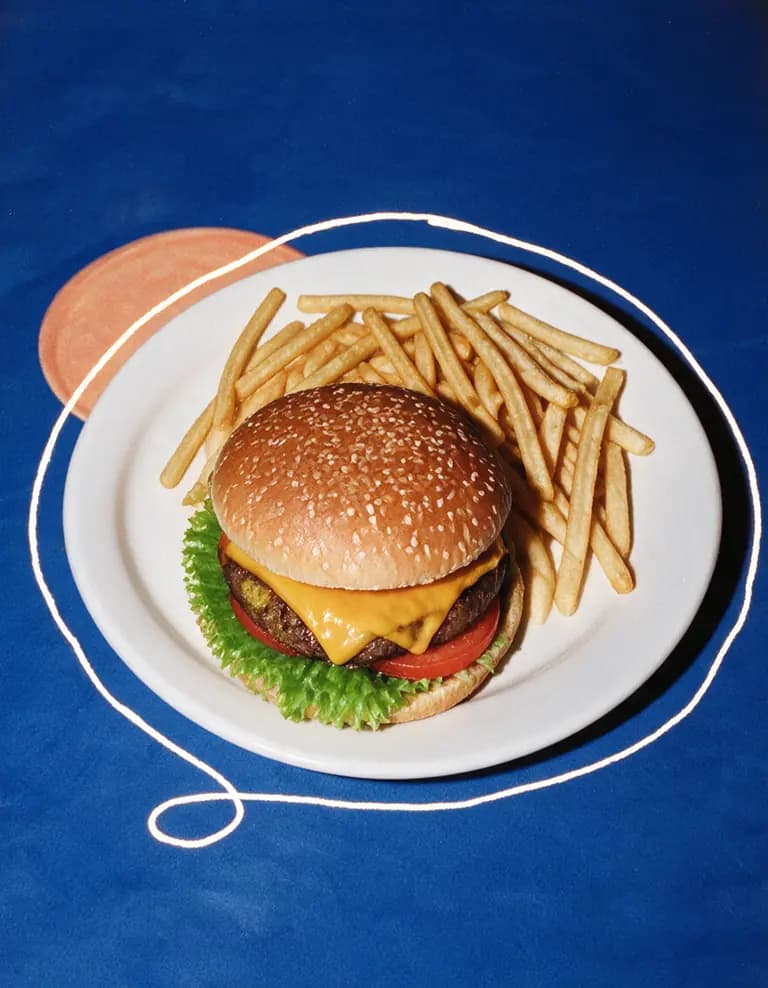
The short answer: shoot each dish on its own, with the flash off, near a window or under even light, at a 45-degree angle (overhead for flat dishes like pizza). Leave space around the plate, because each app crops differently. Export at the size each platform asks for: DoorDash 1920×1080, Uber Eats 1200×960, Grubhub 1200×1200, Seamless 1200×1200. Platforms update their specs, so confirm them in your merchant portal before a big upload.
The rest of this guide covers how to get one photo that works on all three apps, what to check before you upload, and which dishes to photograph first.
The sizes, and what shape they actually are
The pixel numbers matter less than the shape they describe. Each shape crops your photo in a different way.
| Platform | Size (pixels) | Shape | What it means for framing |
|---|---|---|---|
| DoorDash | 1920×1080 | 16:9, wide | Loses the top and bottom of a square photo |
| Uber Eats | 1200×960 | 5:4, slightly wide | Close to square, trims a little top and bottom |
| Grubhub | 1200×1200 | 1:1, square | Loses the sides of a wide photo |
| Seamless | 1200×1200 | 1:1, square | Same as Grubhub |
If you list on all three, your photo will be cut into a wide rectangle, a near square and a true square. A dish that fills the frame edge to edge in a square photo will lose its top and bottom on DoorDash. A dish shot wide and tight will lose its sides on Grubhub.
Shoot once, crop three times
The practical fix is simple: frame a little wider than feels natural, and keep the dish in the center. That gives you room to cut a 16:9 version and a 1:1 version from the same file without slicing off the edge of the plate.
A quick way to check this before you leave the table: after you take the shot, use your phone's crop tool to try a square and a wide crop. If the plate survives both, you have your photo. If the rim gets clipped in either, step back a few inches and shoot again.
Before you pick up the phone
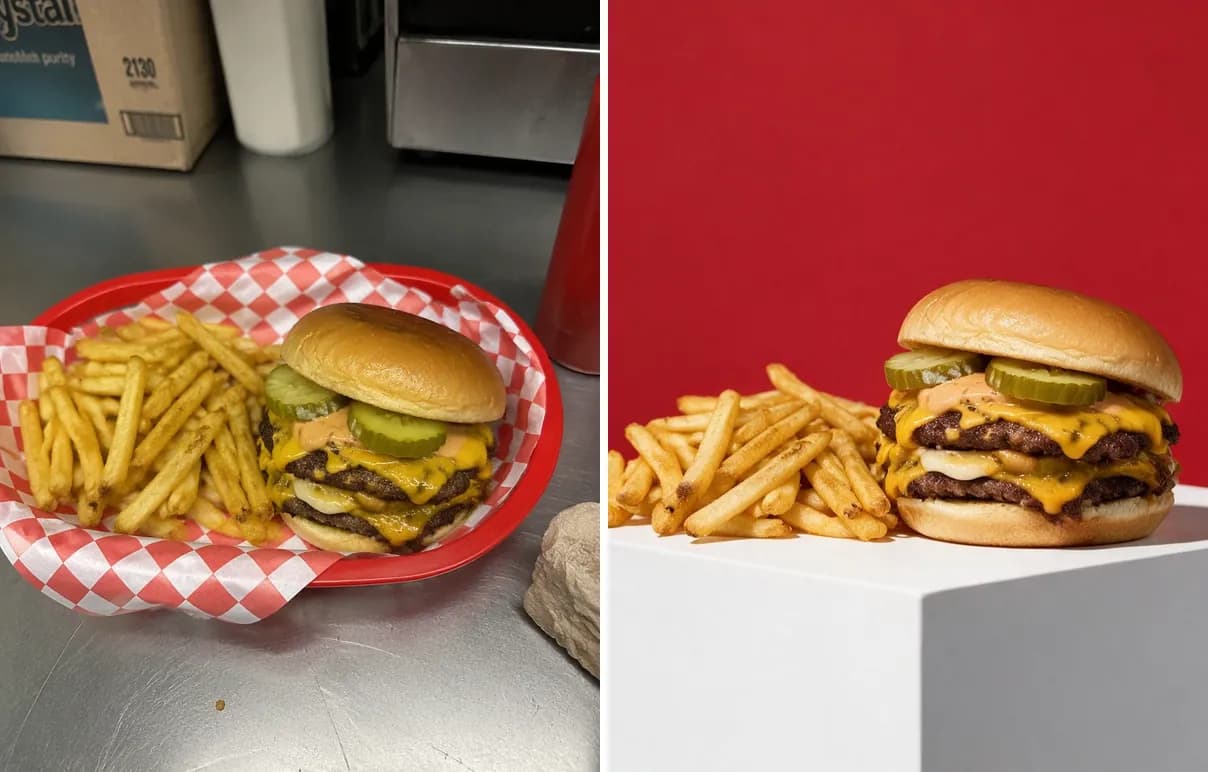
Delivery photos have one job that ad photos do not: the customer will compare the photo with what arrives in the bag. Shoot the dish as you actually serve it.
- Use a real portion. Plate it the way the line plates it on a Friday night. An oversized "photo portion" leads to disappointed customers and bad reviews.
- Wipe the rim. Sauce smears and crumbs on the edge of the plate are the most common thing that makes a good dish look careless.
- Skip garnish you don't send. If the burger goes out without the extra pickle spear, leave it off the photo.
- Shoot it fresh. Fries, fried chicken and anything with melted cheese look best in the first minute or two. Have your spot and angle ready before the plate leaves the pass.
- Clear the background. Move ticket printers, squeeze bottles and phone cables out of the frame.
How to take the photo, step by step
- Turn off the flash. Direct flash flattens food and puts hard glare on sauces and glazes.
- Find the best light you have. A table near a window is ideal. If you have no window, use the most even light in the room and avoid standing between the light and the plate. Kitchen light and a slight color cast are fine to start with; you can correct color later.
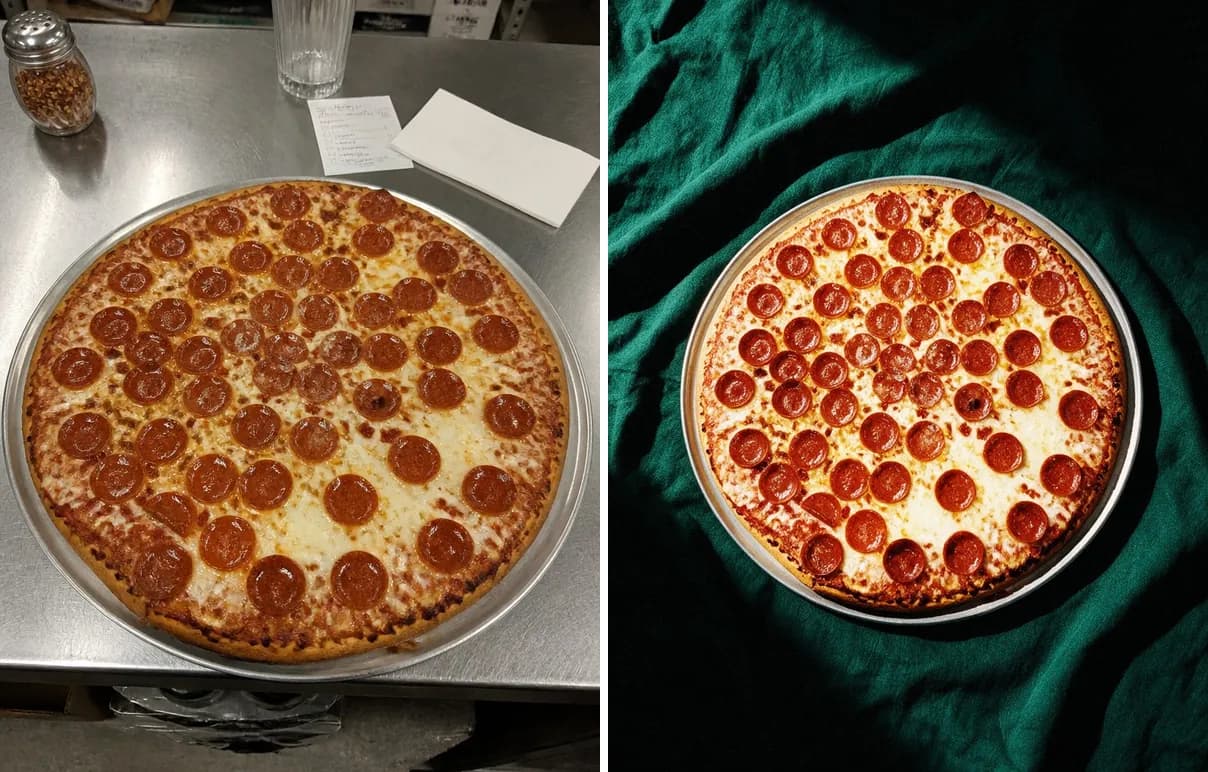
- Pick the angle for the dish. A 45-degree angle, roughly how a diner sees the plate when seated, works for most dishes. Go overhead for flat food like pizza, salads, bowls and flatbreads. Go low, near table height, for burgers, sandwiches, tall stacks and drinks, where the layers are the whole point.
- One dish per photo. Delivery menus show one item per tile. A second plate in the corner makes the listing confusing.
- Tap the dish to focus and hold still. Blur from a moving hand cannot be fixed afterward. Brace your elbows on the table if you need to.
- Take several shots. Move the phone a little between frames. Choosing from five photos is much easier than trying to rescue one.
Each of these angles has its own tricks. Our guide to food photography angles covers overhead, 45 degrees and hero shots in detail.
Cropping and exporting for each app
Once you have a good photo, make one version per platform instead of uploading the same file everywhere and letting each app crop it for you.
- Crop to the shape first, then resize to the exact pixel size. Cropping 16:9 from a square photo and then scaling to 1920×1080 keeps the dish undistorted. Stretching a square into a wide frame never looks right.
- Keep the dish centered. Some layouts put buttons, badges or text near the edges of the image, so do not put the most important part of the food there.
- Check it small. Most customers see your photo as a thumbnail on a phone screen while scrolling. Zoom out on your own phone until the image is roughly thumbnail size. If you can't tell what the dish is, the photo needs a tighter crop or better light.
- Name files clearly. Something like chicken-parm_doordash_1920x1080.jpg saves real time when you're uploading forty items.
Want to skip the manual cropping? Our free Delivery App Photo Resizer does it in your browser: add the photo, tap the dish, and download every size at once.
Free tool: resize one food photo for DoorDash, Uber Eats and Grubhub
Which dishes to photograph first
If you're starting from zero, don't try to shoot the whole menu in one afternoon. Start with the items that matter most:
- Your best sellers. They already get attention, so a good photo supports the order people are most likely to place.
- Your highest-margin items. A photo is one of the few tools you have to steer a customer toward a specific dish.
- Anything with a vague name. "The Classic" or a house specialty with a regional name tells a new customer nothing. A photo answers the question the name raises.
Grubhub has reported that restaurants with photos in their online menus get up to 70% more orders than text-only menus. That is a platform's own figure and results vary, but it is a good reason not to leave your menu as a list of words.
Common problems and quick fixes
- Yellow or orange cast: usually from warm bulbs. Move closer to a window, or fix white balance in editing.
- Greasy glare on the food: the light is hitting the dish too directly. Move the plate so the light comes from the side.
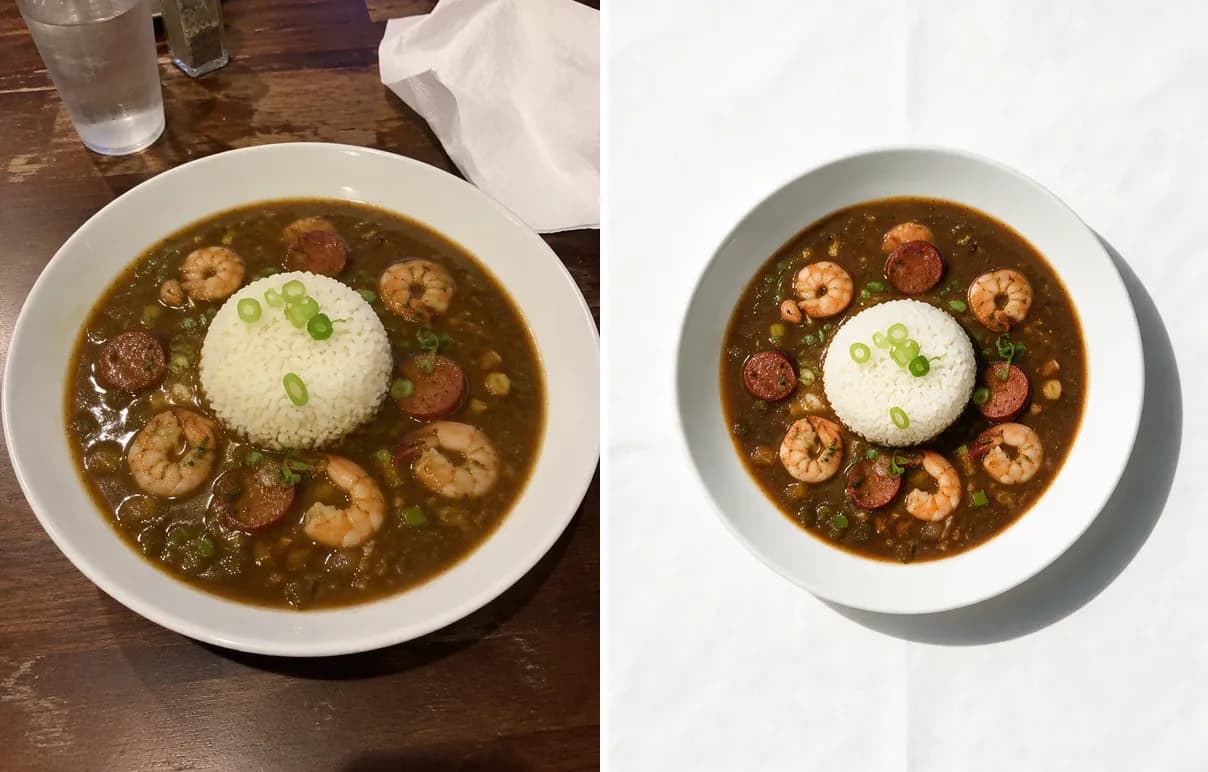
- Dark, muddy browns (braises, gumbo, chili): these dishes need more light than you think, plus a contrasting garnish if you actually serve one.
- Dish looks small: you shot too far away for the final crop. Fill more of the frame, while keeping a margin for the crop.
- Busy background: a plain table or a single-color surface works better than your dining room behind the plate.
If you don't have time to do this for every dish
Everything above works with any phone and no extra software. The time cost is the real problem: shooting, choosing, color-correcting and cropping three versions of forty dishes is a lot of evenings.
This is the job RestoPhoto was built for. You take a phone photo of the dish, and the AI sets the light, the background and the framing, so a finished photo takes about two minutes. The app includes the delivery platform sizes above (DoorDash 1920×1080, Uber Eats 1200×960, Grubhub 1200×1200, Seamless 1200×1200) and a crop for delivery apps, so you don't have to size each version by hand.
Two things to know before you use any AI photo tool for delivery menus. First, AI can change small details of a dish, and some styles add props around the plate. Use Show before and Show after to compare the result with your original before you publish, because customers will compare it with what they receive. Second, the dish stays yours: what changes is the light, the backdrop and the framing, not what you serve.
Try it on one of your own dishes. Your first photo is free, no card.
Try RestoPhoto on one of your own dishes
FAQ
What size should DoorDash food photos be?
DoorDash photos should be 1920×1080 pixels, a wide 16:9 shape. Frame your dish with extra space above and below if you also plan to use the same photo on square platforms like Grubhub.
What size are Uber Eats menu photos?
Uber Eats uses 1200×960 pixels, a 5:4 shape that is close to square. Crop to that shape first, then resize, so the dish isn't stretched.
Can I use the same photo on DoorDash, Uber Eats and Grubhub?
Yes, if you shoot wide enough. Keep the dish centered with room around the plate, then crop one version per platform: 16:9 for DoorDash, 5:4 for Uber Eats and 1:1 for Grubhub and Seamless.
Can I use stock photos on delivery apps?
We don't recommend it. Customers compare the photo with the food that arrives, and a stock image of someone else's burger sets the wrong expectation. Check each platform's own guidelines as well. A photo of your actual dish is the safer choice.
Do I need a professional camera for delivery app photos?
No. A modern phone is enough for delivery menus, which are mostly viewed as small images on phone screens. Light, focus and framing matter far more than the camera.
Try RestoPhoto with your own photo
Upload a dish photo and choose a style. Compare the result with the original before publishing.
Try RestoPhoto